
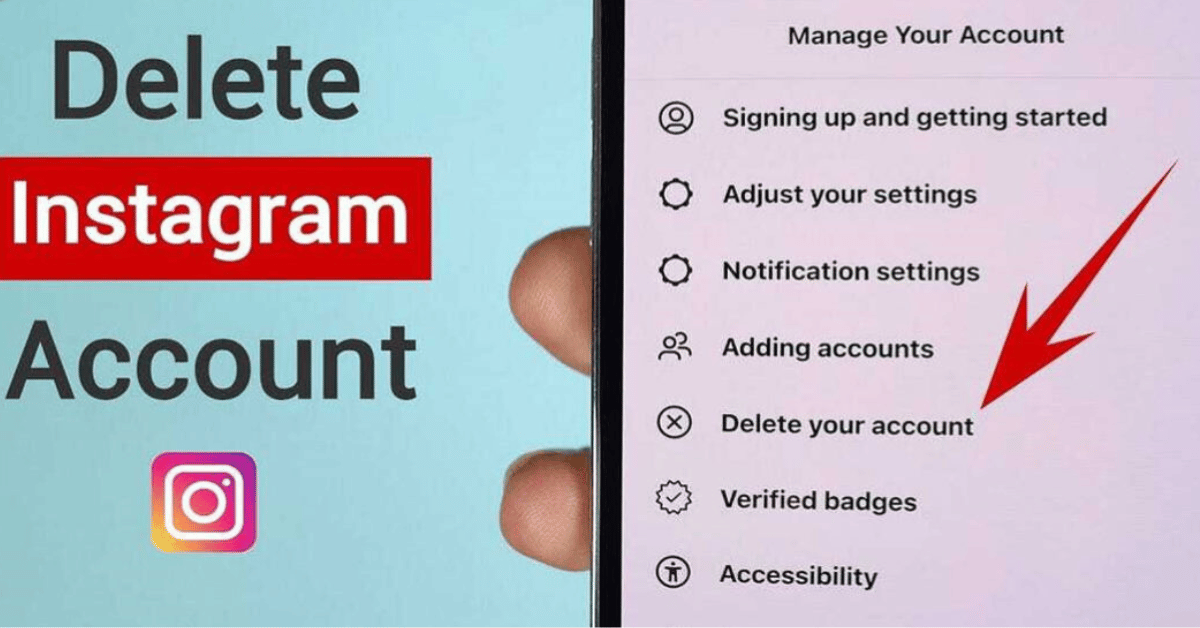

Are you feeling overwhelmed by Instagram or just ready for a social media detox? Learning how to delete Instagram account on phone is simpler than you think. Whether you want a temporary break or a permanent goodbye, this guide walks you through every step so you can manage your account with confidence.
Temporary vs. Permanent Deletion
Before proceeding, it’s important to understand the two options Instagram provides:
-
Temporary Deactivation: Your account is hidden but can be restored later. Your profile, posts, and comments are invisible to others during this period.
-
Permanent Deletion: All your data, including photos, followers, and messages, will be permanently removed. There’s no way to recover the account after deletion.
Choose the option that best fits your needs before continuing.
How to Delete Instagram Account on Phone: Step-by-Step
1: Open Instagram App or Browser
-
You can only delete your account using a mobile browser or the app’s built-in browser.
-
Log in to the account you want to delete.
2: Navigate to the Delete Account Page
-
Go to the Instagram Delete Your Account page via browser: Instagram Delete Account
-
Select a reason for deletion from the dropdown menu.
3: Enter Your Password
-
Re-enter your password to confirm your identity.
4: Confirm Deletion
-
Tap Permanently delete my account.
-
Your account will now be scheduled for deletion. Instagram allows a short grace period (usually 30 days) in case you change your mind.
How to Temporarily Deactivate Instagram on Phone
If you’re not ready for permanent deletion, temporary deactivation hides your account instead:
-
Open a mobile browser and log in to Instagram.
-
Go to Profile > Edit Profile.
-
Scroll down and tap Temporarily disable my account.
-
Choose a reason and enter your password.
-
Tap Temporarily Disable Account.
Your profile will be hidden until you log back in.
Tips Before Deleting Your Account
-
Backup your data: Download your photos, videos, and messages from Instagram before deleting.
-
Notify contacts if needed: Let friends and followers know if you want to stay in touch elsewhere.
-
Consider alternatives: You can simply log out or uninstall the app if you want a break without permanent deletion.
FAQs About Deleting Instagram Account on Phone
Q: Can I delete Instagram directly from the app?
A: No, Instagram requires a mobile browser for account deletion. The app allows temporary deactivation but not permanent deletion.
Q: How long does Instagram keep my data after deletion?
A: Instagram usually gives a 30-day grace period before permanently removing your data.
Q: Can I recover a deleted Instagram account?
A: Only if it’s temporarily deactivated. Permanent deletion is irreversible.
Q: Will my messages disappear after deletion?
A: Yes, all messages and content will be permanently removed with permanent deletion.
Q: Can I delete multiple Instagram accounts at once?
A: No, each account must be deleted separately using the steps above.
Conclusion
Knowing how to delete Instagram account on phone empowers you to take control of your digital presence. Whether you opt for temporary deactivation or permanent deletion, these steps ensure a smooth and safe process.