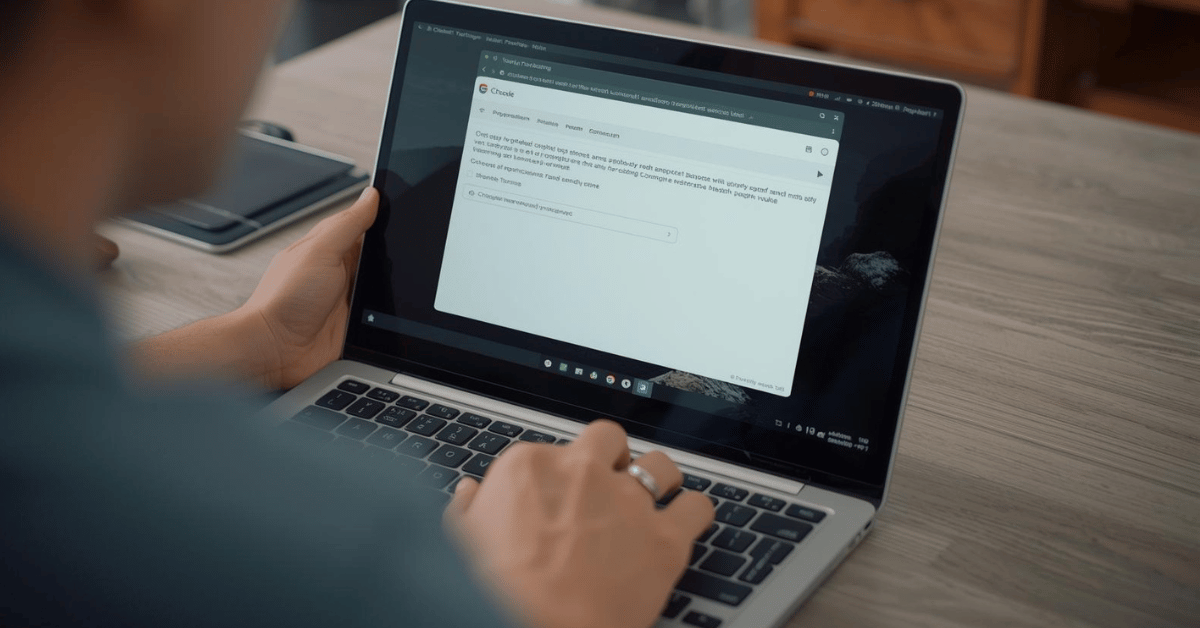

Taking a screenshot on a Chromebook might seem tricky if you’re used to Windows or Mac, but it’s actually straightforward once you know the steps. Whether you want to capture the entire screen, a portion of it, or need a method without the Windows key, this guide will show you how to screenshot on a Chromebook laptop efficiently.
1. Screenshot on Chromebook Using Keyboard Shortcuts
Chromebooks have dedicated shortcuts to make screenshots quick and easy.
Full-Screen Screenshot
-
Press Ctrl + Show Windows key (or F5).
-
The screen will flash, indicating the screenshot was taken.
-
Screenshot is saved in the Downloads folder by default.
Partial Screenshot
-
Press Ctrl + Shift + Show Windows key (or F5).
-
Drag your cursor to select the area you want to capture.
-
Release to take the screenshot.
These shortcuts work on most Chromebook models and are the fastest method.
2. Screenshot on Chromebook Without Windows Key
Some Chromebooks or external keyboards may lack the Windows key. Here’s what to do:
-
Use the Ctrl + F5 shortcut if available.
-
Alternatively, try Ctrl + Switch Window key.
-
On touchscreen Chromebooks, swipe down with three fingers to capture the screen.
These methods ensure you can take screenshots even without the standard keys.
3. Screenshot on Chromebook Laptop with Keyboard
If you’re using an external or built-in keyboard, these options work:
-
Ctrl + Show Windows key – full screen
-
Ctrl + Shift + Show Windows key – partial screen
-
Ctrl + Alt + Show Windows key – take a screenshot of the current window (on some models)
Tip: Check your Chromebook’s keyboard shortcut guide in Settings to see model-specific options.
4. Using the Chromebook Screenshot Tool
Chromebooks also have a built-in Screenshot app:
-
Press Shift + Ctrl + Overview (the key with a rectangle and two lines).
-
Select Full Screen, Partial Screen, or Window.
-
Click Capture.
-
The image saves automatically in the Downloads folder.
This tool is perfect for users who prefer not to memorize keyboard shortcuts.
5. Tips for Managing Screenshots
-
Access screenshots easily: Open the Files app > Downloads folder.
-
Edit or annotate: Use apps like Google Keep or Canvas to mark up screenshots.
-
Use cloud storage: Save screenshots to Google Drive for easy sharing across devices.
FAQs About Screenshot on Chromebook
Q: How do I screenshot on a Chromebook without Windows key or F5?
A: Use Ctrl + Shift + Overview key or the touchscreen three-finger swipe method.
Q: Can I screenshot a single window?
A: Yes, using Ctrl + Alt + Show Windows key on supported models or the Screenshot app.
Q: Where are Chromebook screenshots saved?
A: By default, they’re saved in the Downloads folder.
Q: Can I edit a screenshot immediately?
A: Yes, you can open it with built-in apps like Gallery or Google Keep for quick annotations.
Q: Do screenshots work on Chromebook tablets?
A: Yes, use the touchscreen gesture (three-finger swipe down) or the dedicated screenshot button on some models.
Conclusion
Knowing how to screenshot on Chromebook is simple once you learn the shortcuts and built-in tools. Whether you use a keyboard, touchscreen, or work without the Windows key, capturing your screen is fast and easy.