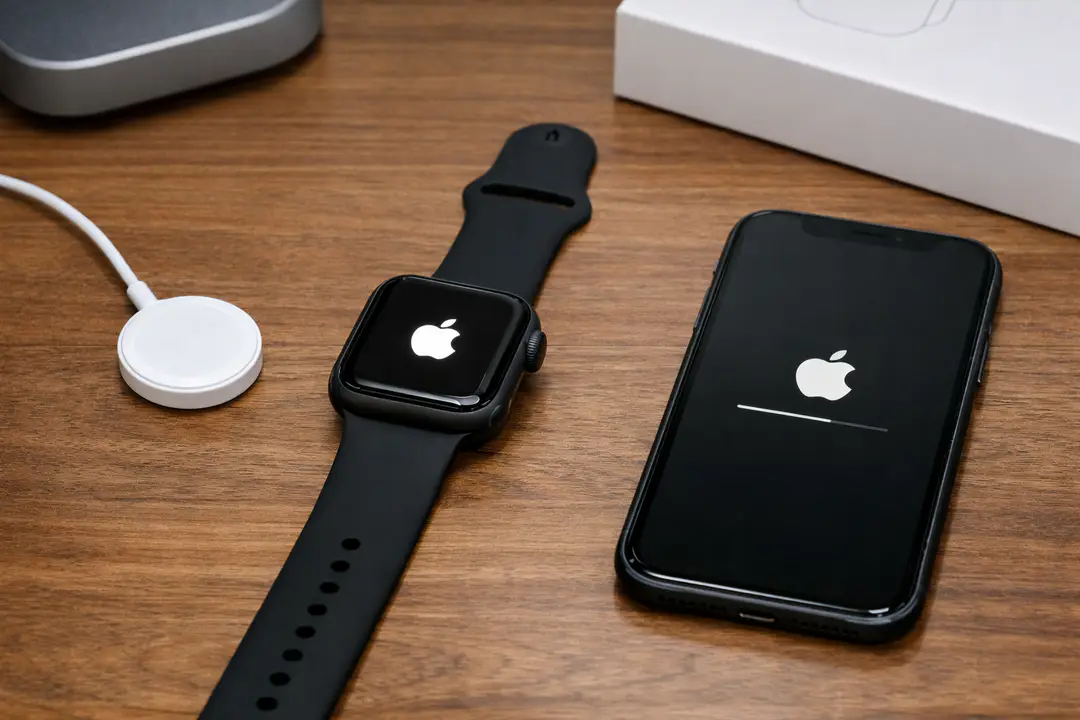

The safest way to reset Apple Watch is to Unpair it from your paired iPhone in the Watch app—this automatically erases the watch, creates a fresh backup, and (crucially) removes Activation Lock.
You might reset to troubleshoot glitches, prepare a trade-in, or move to a new iPhone. You’ll end up with an Apple Watch returned to factory settings and ready to set up with Start Pairing. If you don’t have the paired iPhone, you can still erase the watch directly, but Activation Lock will remain until the Apple Account owner removes it. And if you forgot the passcode, there’s a specific reset flow using the side button and Digital Crown.
Time/difficulty: 5–15 minutes, easy. What you’ll need: ideally your paired iPhone, your Apple Account password, a charger, and Wi‑Fi/cellular coverage if needed. If your model is GPS + Cellular, plan a moment to manage the cellular plan as well.
Quick Overview: Choose the right reset method
- Best (recommended): Unpair using iPhone Watch app → erases watch + removes Activation Lock + makes a backup.
- No iPhone available: Erase on the watch → factory reset, but Activation Lock stays.
- Forgot passcode: Use the watch’s reset menu from power screen → erase without passcode.
- After reset: Start Pairing → restore from a backup or set up as new.
Step 1: Prepare your Apple Watch before you reset
Use this step if you’re about to erase for troubleshooting, selling, gifting, or switching iPhones. A little prep prevents avoidable headaches—especially with Wallet transit cards, cellular plans, and Activation Lock.
- Charge and connect: Put the Apple Watch on its charger and keep it nearby during the reset. Keep your iPhone close and connected to Wi‑Fi (or reliable mobile data).
- Update your credentials: Make sure you know the Apple Account password used on the watch. You may be prompted for it to disable Activation Lock during unpairing.
- Handle transit cards first: If you use a transit card in Wallet, remove it from the Apple Watch before unpairing. This helps avoid the common “missing card” issue after a reset.
- On iPhone: open the Watch app → My Watch tab → Wallet & Apple Pay → remove the transit card from the watch.
- Know what not to poke: Apple Watch has no reset button and no physical SIM slot. Holes in the case are for microphones/speakers (and water-depth measurement on Apple Watch Ultra), not manual resets.
Common mistakes to avoid: resetting when the watch battery is low, forgetting the Apple Account password, and skipping transit card removal.
Pro tip: If you’re selling the watch, do the recommended iPhone unpair method (next step). It’s the cleanest way to remove Activation Lock in one go.
Step 2: Unpair and erase using your iPhone (recommended)
Use this method when you have the paired iPhone. It’s the best reset because it automatically creates a new backup, erases the watch, and removes Activation Lock. It also minimizes the risk of the next owner being locked out.
- Open the Watch app: On your iPhone, open Apple’s Watch app.
- Go to the watch list: Tap the My Watch tab, then tap All Watches at the top-left.
- Select your watch: Tap the info button (ⓘ) next to the watch you’re resetting.
- Unpair: Tap Unpair Apple Watch, then confirm.
Why it matters: this triggers the erase process and prompts iPhone to make a fresh backup first, so you can later restore from a backup.
- Handle cellular (if applicable): If you have a GPS + Cellular model, you’ll see an option to keep or remove your cellular plan.
- Keeping the plan is useful if you’re pairing the watch again to your iPhone.
- Removing the plan is recommended if you’re selling/gifting or switching carriers.
- Enter Apple Account password if prompted: This step disables Activation Lock during the unpair. Without it, the watch can remain linked to your Apple Account.
Common mistakes to avoid: selecting “erase” on the watch without unpairing first (when you do have the iPhone), choosing the wrong watch in All Watches, and forgetting to remove the cellular plan when selling.
Pro tip: If your goal is simply to fix glitches, unpair + re-pair can solve stubborn sync problems. For a related walkthrough focused on connection cleanup, see the guide on properly disconnecting the watch from an iPhone.
Step 3: Erase your Apple Watch directly from the watch (no iPhone)
Use this method when you don’t have access to the paired iPhone—maybe it’s lost, broken, or you’re traveling. This will reset the watch to factory settings, but Activation Lock will remain. The next person will still need the Apple Account credentials that were previously used on the watch.
- Put the watch on the charger: Keep it on a charger throughout the process.
- Open Settings: On Apple Watch, open the Settings app.
- Navigate to erase: Tap General → Reset → Erase All Content and Settings.
- Confirm: Enter the passcode if prompted, then confirm Erase All Content and Settings.
Why it matters: this removes your data from the device itself, which is important if you’re troubleshooting or preparing to hand it off.
Common mistakes to avoid: assuming this removes Activation Lock (it does not), starting the erase with a low battery, and forgetting the passcode (if you don’t know it, use the next step).
Pro tip: If you’re erasing because you’re switching to a different iPhone later, consider waiting and doing the iPhone unpair method instead. You’ll get a clean backup and a smoother pairing experience.
Step 4: Reset an Apple Watch if you forgot the passcode
Use this method when the watch is locked and you can’t enter the passcode. You’ll erase the watch using the power screen. This is also useful if Face/Touch unlock via iPhone isn’t available, but you still need to reset.
- Keep the watch on its charger: This reset flow is designed to be done while charging.
- Open the power menu: Press and hold the side button until you see the power screen.
- Access erase option: Press and hold the Digital Crown until you see Erase Apple Watch Content and Settings.
- Confirm erase: Tap Erase Apple Watch Content and Settings, then confirm.
Why it matters: it’s the official way to erase without knowing the passcode—there is no “reset button” on Apple Watch.
Common mistakes to avoid: tapping quickly instead of pressing and holding the Digital Crown, trying to use case holes as a reset (they are not), and expecting Activation Lock to be removed without the Apple Account password.
Pro tip: After the erase, you can Start Pairing again. If the watch still shows it’s linked to an Apple Account, you’ll need that account to proceed (see the post-reset section below).
Step 5: Start pairing again and restore from a backup
Use this step after any reset method. It gets your Apple Watch back into service—either as a clean setup or by using the backup your iPhone created during unpairing. This is where most “Did I lose everything?” questions come up.
- Bring iPhone and watch together: Turn on the watch and hold it near your iPhone.
- Start the setup flow: On iPhone, follow the prompt to Start Pairing. If it doesn’t appear, open the Watch app to begin pairing manually.
- Choose restore vs new:
- Restore from a backup if you unpaired using your iPhone and want your settings/apps back.
- Set up as new if you’re troubleshooting, giving it away, or want a clean configuration.
- Sign in when prompted: If Activation Lock is enabled, you’ll be asked for the Apple Account credentials previously associated with the watch.
Common mistakes to avoid: restoring an old backup when you’re trying to eliminate bugs (set up as new instead), pairing the watch to the wrong iPhone Apple Account, and separating devices during setup.
Pro tip: If you reset due to sync issues, set up as new first. If everything behaves normally, you can then re-enable features gradually (notifications, background refresh, third-party complications) and identify what caused the problem.
Step 6: Verify Activation Lock status and ownership
Use this step if you’re selling, gifting, buying used, or moving the watch between family members. Activation Lock is the number-one reason a “reset” doesn’t feel complete. The key fact: Unpairing with the iPhone removes Activation Lock and erases all content and settings. Erasing on the watch alone usually does not.
- Confirm you used the recommended method: If possible, reset by unpairing from the iPhone (Step 2). That’s the most reliable way to remove Activation Lock.
- Check what the watch shows after reset: During setup, if the watch asks for someone else’s Apple Account, it’s still locked. You’ll need that owner to sign in or remove the device from their account.
- For second-hand purchases: Only complete the sale if the seller unpairs it in front of you and you can reach the Start Pairing screen without an Apple Account prompt.
Common mistakes to avoid: trusting “Erase All Content and Settings” on the watch as proof it’s ready for a new owner, or assuming a cellular plan removal also clears Activation Lock (it doesn’t).
Pro tip: If you’re troubleshooting broader Apple device sign-in issues, it can help to confirm your Apple Account status and device trust settings. For iPhone housekeeping that often comes up during account changes, see how to review blocked contacts and phone settings before you reconfigure notifications and call mirroring.
Step 7: Manage cellular plans and Wallet items before/after reset
Use this checklist if you have a GPS + Cellular Apple Watch, or you rely on Wallet features like a transit card. These items are easy to overlook because they live partly on the watch and partly in your Apple ecosystem.
- Cellular plan: During iPhone unpairing, choose whether to keep or remove the plan. If you’re selling or handing off the watch, remove the plan and confirm with your carrier if needed.
- Transit card: Remove it from the Apple Watch before unpairing to avoid it getting stuck in an “unavailable” state. If you forgot, you may need to re-add it from Wallet later depending on the transit system.
- Other Wallet cards: Most payment cards can be re-added after reset, but you may need bank verification again. Plan a few minutes for this step if you’re setting up for the first time.
- Backups: The iPhone creates a new backup right before it unpairs/erases the watch. That backup is what makes “restore from a backup” possible during setup.
Common mistakes to avoid: assuming your cellular plan transfers automatically to a different Apple Watch, forgetting transit cards, and expecting the watch to have a SIM tray (it does not).
Pro tip: If you’re changing devices and also doing other digital cleanup, align your resets and account changes in one session. Many people also remove unused services around the same time—if that’s you, follow a structured account-offboarding process like this social account removal walkthrough so you don’t miss security prompts.
Troubleshooting / Common Issues
My Apple Watch erased, but it still asks for an Apple Account
That’s Activation Lock. If you erased from the watch (Step 3 or Step 4), the lock can remain. The fix is to unpair properly using the original paired iPhone (Step 2) or have the Apple Account owner remove the watch from their account. Without that, you can’t complete setup.
The unpair option is missing or I see multiple watches in All Watches
In the Watch app, verify you’re on the My Watch tab and then tap All Watches. Choose the correct watch by name/model (for example, an Apple Watch Ultra vs a smaller aluminum model), then tap the info (ⓘ) button. If Bluetooth is off or the watch isn’t nearby, unpairing can fail—turn Bluetooth on and keep devices close.
The watch won’t show “Erase Apple Watch Content and Settings”
Make sure the watch is on its charger. Then press and hold the side button until the power screen appears, and press and hold the Digital Crown long enough to trigger the erase option. A quick tap won’t work.
Conclusion
You’ve now reset your Apple Watch in the safest way for your situation—either by unpairing through your iPhone for a full erase plus Activation Lock removal, or by erasing directly on the watch when the iPhone (or passcode) isn’t available. You also know what happens afterward: your iPhone can create a fresh backup during unpairing, and you can Start Pairing again to restore from a backup or set up as new.
As next steps, re-add Wallet cards, confirm your GPS + Cellular plan status, and keep your Apple Account credentials handy for any Activation Lock prompts. If you’re still seeing pairing or sync problems after a clean setup, focus on rebuilding settings gradually—notifications and third-party complications are common culprits.